ApexFactory ERP
Stock, bins and warehouses
Stock is more than a quantity on a shelf. The ApexFactory ERP knows which bin it is in, what batch it belongs to, who owns it, what it is spoken for and how much more is arriving, and it shows the shortfall before the shop floor finds it.
What stock control covers
Warehouses with as much structure as you need
A warehouse can be a single location or a hierarchy of areas, zones and sections, each with a code. Locations can be disabled temporarily and show how many locations sit beneath them.
Bins
Bins have a code and belong to a warehouse. A stock item can have several bins, with a default, and parts that have none can be given one.
Batches that say what stock is
Each batch records how the stock came to exist (original, bundled or returned), who owns it (owned, consignment, customer-supplied or third-party) and who it is for (general, a job allocation, an order line or nobody). Stock arriving in a bin merges into the bin's general batch.
Forecast by part
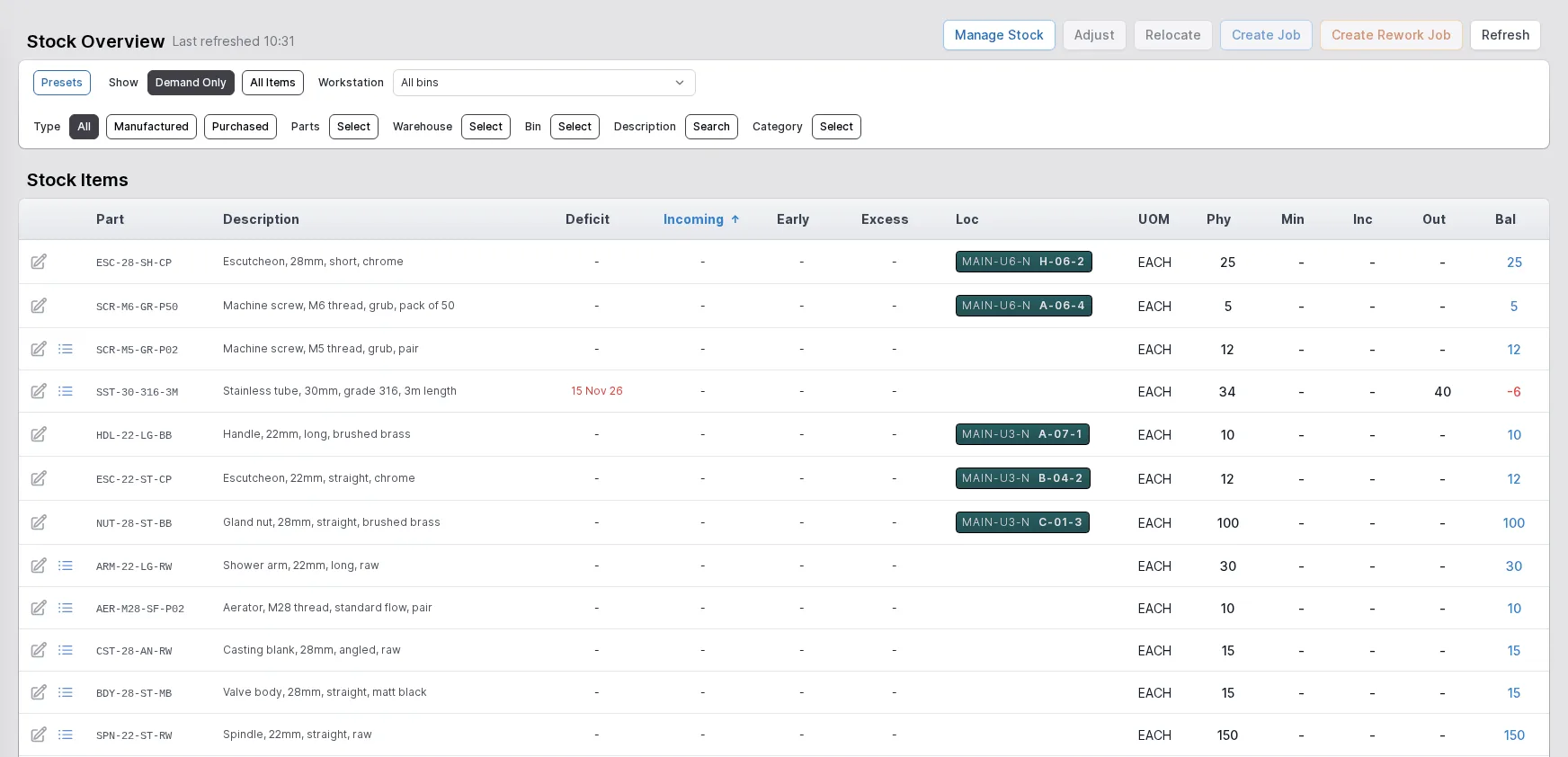
The stock overview shows each part's physical stock, its deficit and the date it first goes short, early and excess supply, what is incoming, minimum levels and the bin it sits in. Switch between demand only and all items, and filter by workstation, warehouse, bin or category.
Book in, adjust and relocate
Book stock in, adjust a quantity, or relocate stock between bins singly or in bulk. Every movement is recorded as a stock transaction.
Stock counts
Set how often each stock item's batches should be counted. Items due a count are flagged, the stock count screen lists what to count and where, and counting is recorded against the batch with the date it was last done.
Traceability to orders and jobs
Linked batches tie stock to the order or job it was received for, so you can find the batches behind a customer order or a job in a click, and bespoke parts stay with the order they were made for.
Notes pinned to stock items
Pin a note to a stock item, such as a quality issue, a supplier delay or a handling requirement, so the next person to touch it sees it.
A forecast for every part
The stock overview is the stores manager's desk. Each part shows what is physically in stock, where it sits, what is incoming, and where it will be short, with the date the first shortfall falls due. Demand only hides everything that is comfortably covered.
From the same screen you can manage stock, adjust it, relocate it, or create a job or a rework job for what is short. Open Manage Stock on a part to see its forecast date by date.
- Deficit, early supply and excess supply per part
- Filters by type, warehouse, bin, category and workstation
- Create a job straight from the shortfall
Batches you can follow
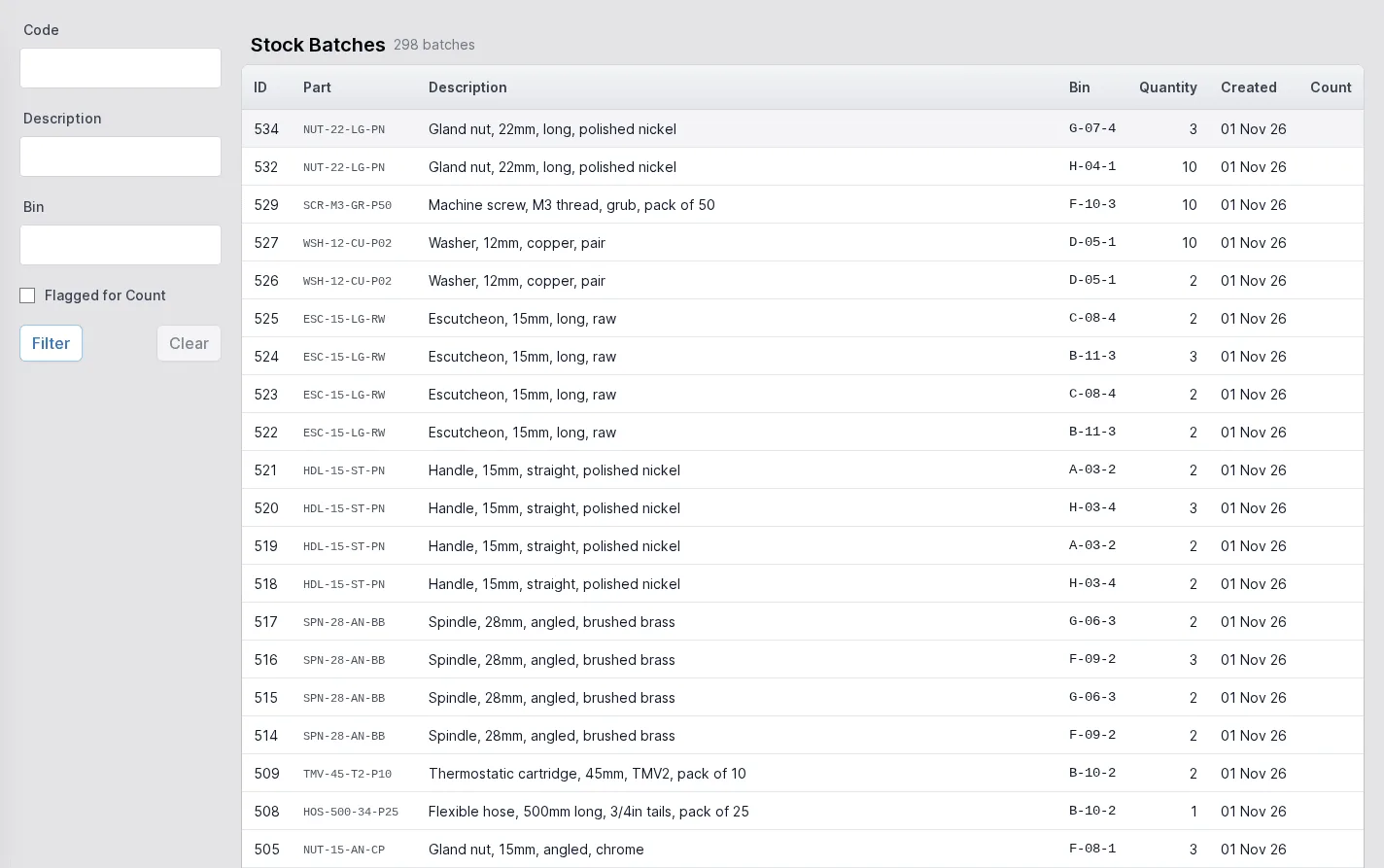
The batches list shows every batch with its part, bin and quantity and when it was created. Behind each batch is where it came from, who owns it and what it is spoken for, so consignment stock never gets mixed up with your own and stock reserved for an order is not given to someone else.
A flag marks batches for counting, and a general batch per part per bin keeps the list short.
- Ownership: owned, consignment, customer-supplied, third-party
- Reserved for a job allocation or an order line
- Archival and merging when stock joins an existing bin
The forecast
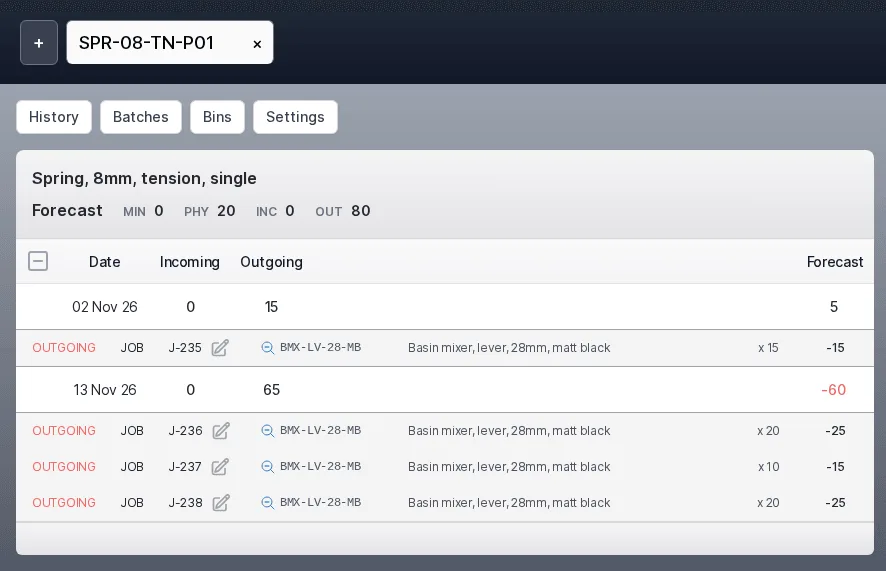
Open Manage Stock on any stock part and its Forecast tile lays the part's future out one date at a time. Each date shows what is arriving, what is leaving and the balance left once both have happened, and the balance turns red where it falls below the part's minimum quantity.
Above the dates the tile gives the part's minimum, physical, incoming and outgoing quantities. Once a part has usage history it also shows its average monthly usage and how long the physical stock should last at that rate.
What takes stock out
Jobs that use the part as a material, bundle jobs, order lines and subcontract work all show as outgoing, each line naming the job, order or purchase behind it.
What brings stock in
Works orders from jobs and purchase lines show as incoming. A line on a draft purchase order is listed but not counted until the order is activated.
Act on what it shows
Open an incoming job from its line. For a part you make, create a job for any date and, if you may modify jobs, drag an incoming job onto another date to re-date it, unless its date follows an order or another job.
One calculation
The Forecast tile, the stock overview and the dashboard planning flags all come from the same calculation, so they cannot disagree.
Demand against stock, date by date
This spring has 20 in stock, and four jobs for basin mixers want 80 between them. The first date takes 15 and leaves 5. The next takes 65 more and leaves the balance at minus 60, in red.
Nothing is incoming, so the shortfall is plain to see.
- Every line names the job and the part it is for, with the quantity it takes
- Incoming and outgoing totals for each date, and the balance after it
- Minimum, physical, incoming and outgoing quantities across the top
Supply arriving to cover a job
A gland nut has 4 in stock and a job for shower rail kits that needs 10. Four purchase lines bring in 18, so the balance after that date is 12.
Incoming purchase lines are green and outgoing lines red. Each purchase line names its purchase order and the quantity it brings.
- Purchase lines and jobs both count as supply
- Lines on a draft purchase order are shown in grey and left out of the balance
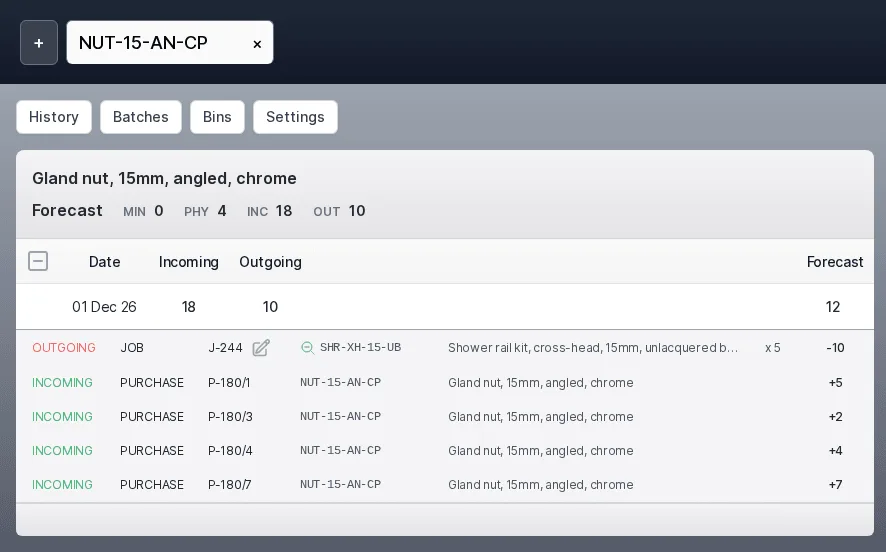
Both pictures are the Forecast tile of Manage Stock in our demonstration data, with the part's tab strip above it, taken at a window 1760 pixels wide. The tile sits beside a Usage tile on the full screen.
The rest of the ERP
Every area works from the same record of every part, customer and order.
- 01
Sales
Customers and prospects, quotations, orders, the sales-item catalogue and returns, in one record that follows the customer's order all the way to dispatch.
- 02
Engineering
Parts and how each is supplied, bills of materials, routings and the operations they are built from, with schedules that work back from the due date.
- 03
Production
Jobs and works orders planned from real demand, operations run at workstations, with timing, materials and quality issues tracked as the work is done.
- 04
Purchasing
Suppliers and the parts they sell, purchase orders raised from real demand, goods receipts against orders or straight onto a job, and subcontracting.
- 06
Dispatch
Packages, dispatches and the carriers you use, with export paperwork and proof of delivery kept with each dispatch.
- 07
Finance
Invoices, pro-formas and credit notes, purchase bills, and standard costs rolled up from bills of materials and saved as snapshots.
- 08
Platform
Users and roles, a history of every change, editable document templates, custom fields, global search and to-do lists.
Count, move and forecast stock
Tell us how your stores are laid out and we will show you how they are modelled in the ApexFactory ERP.