ApexFactory ERP
Parts, bills of materials and routings
Everything production and purchasing do starts here: the definition of what you make, what goes into it and the steps it goes through. Definitions are locked when finalised and replaced by superseding, so history is never rewritten.
What engineering defines
Parts and supply routes
A part is manufactured, purchased or a bundle, and can carry more than one supply route: a purchased part you can also make in-house is dual-sourced. Planning strategy says whether it is held to stock or acquired to order, and parts have a unit of measure, categories and a standard and actual cost.
Bills of materials
Link parts to the bills of materials that build them, set a default per part, and keep standard, rework and conversion bills apart. Only finalised, non-archived bills can be the default, and a part can have several if it can be made more than one way.
Routings built from operations
A routing is an ordered list of operations, each one kind of work at one station or station group. Routings start as drafts, are finalised for production and, once locked, are changed by superseding with a recorded reason, or cloned into something new.
Schedules that work backwards
A routing schedule says how many days before a job's due date each operation must finish. Weekends and your own holiday calendar are skipped, and a part-specific schedule overrides the routing's default.
Subcontracting
Mark a part as subcontracted and give it a conversion bill listing the material you send per unit. Purchase order lines for it commit you to send that material, and the stores see it on a Material to Send screen.
Cost roll-up and snapshots
Part costs roll up through multi-level bills of materials, circular references are detected rather than looped, and the result is saved as a dated, attributed snapshot of standard costs that can be compared with any other.
Your own fields on parts
Add typed fields of your own to parts, sales items, bill of materials lines, supplier parts and jobs, such as finish, range or approval. They are stored as real columns, so they can be filtered and reported on like any other field.
Safe retirement
Archive an operation and it leaves the lists and the routing editors, while routings and open jobs that already use it carry on. Unarchive brings it back at once. A part cannot be made obsolete while a live sales item still sells it.
Routings and the parts that use them
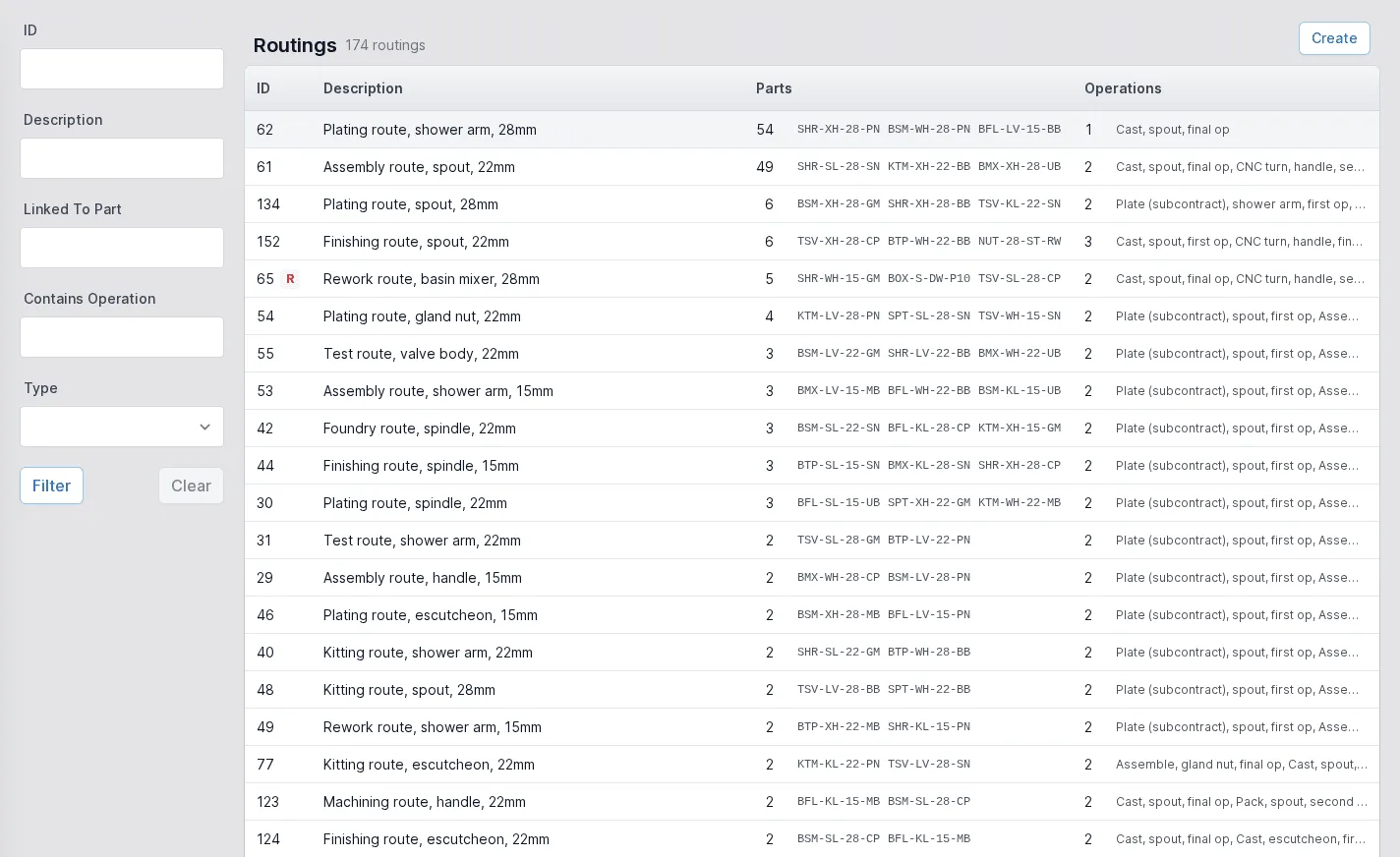
The routings list shows each routing with the parts that use it and the operations it runs through, in order: cast, machine, plate, test, assemble. Filter by a part, an operation or a type to find the routing behind a product.
Routings that are still drafts can be reshaped; once finalised they are the version production works to. When a better way of working is found, supersede the routing: the old one is archived, the new one is linked as its replacement and the reason is kept.
- Draft, finalised and archived states
- Supersede, clone and move parts between routings
- Rework routings kept separate from standard ones
Bills of materials you can trust
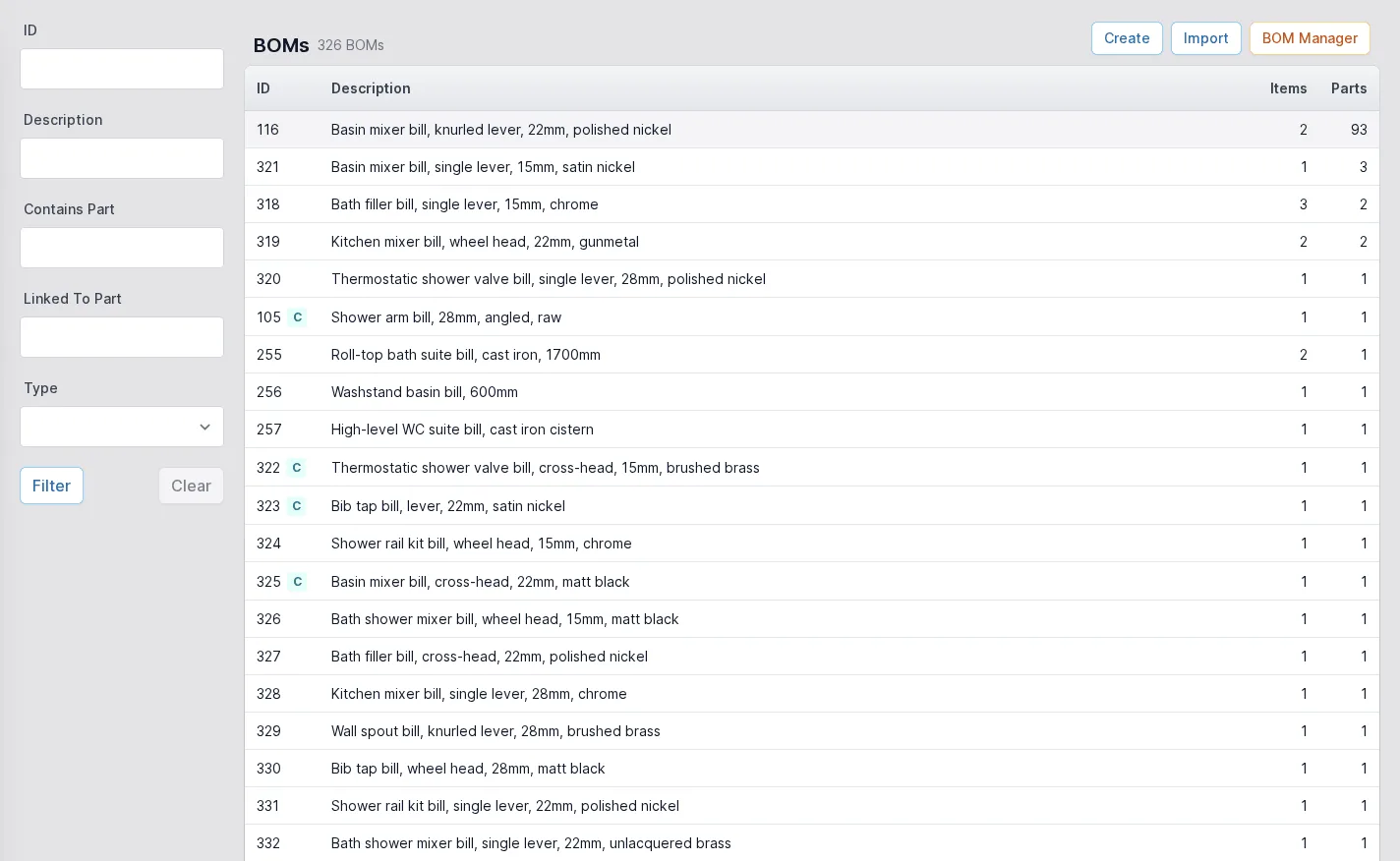
The bills of materials list shows every bill with how many items it holds and how many parts use it. A bill is linked to the parts it builds, finalised when it is right and archived or superseded when it is not, so a job always runs from a bill that was complete when it was created.
Because costs roll up from these bills, correcting a bill and taking a new cost snapshot is how a price change reaches your standard costs.
- Standard, rework and conversion bills
- A default bill per part
- Batch linking of many parts to one bill
The BOM Manager
A part is rarely in only one bill of materials. When a component is replaced, a quantity changes or a part is dropped, editing the bills one at a time is slow and easy to get wrong. The BOM Manager, opened from the bills of materials list, changes as many as the rules select in one pass, in two steps: choose the bills, then say what changes.
A finalised bill is never edited in place. The BOM Manager supersedes: each bill the rules change is replaced by a new one, with the reason you give, and nothing is changed until you confirm.
Choose the bills
By the parts they contain, with an optional quantity condition; by the manufactured parts they build; or by picking them from a list.
Say what changes
Add parts, remove parts, change quantities or replace one part with another, in as many rules as you need.
Preview every change
See each affected bill, before and after, and read the difference line by line before you confirm.
Supersede, never overwrite
A reason is required, and every bill that changes is superseded, so the old version stays in its history.
Choose the bills, then the change
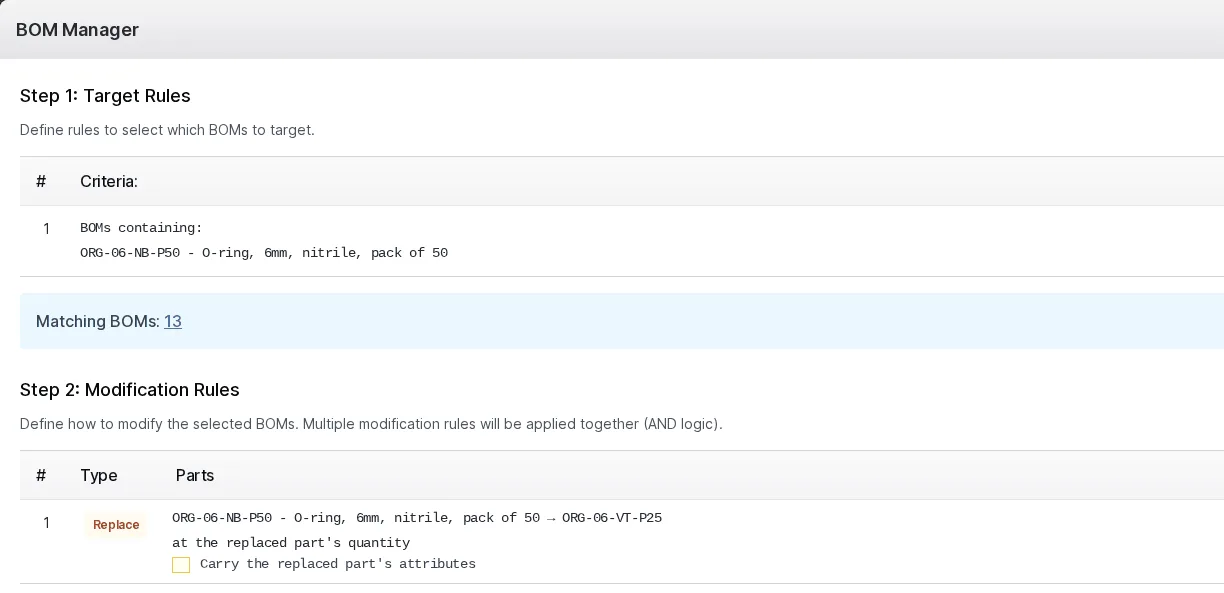
Step 1 is a list of target rules. Here the rule is every bill that contains one O-ring, and the dialog counts the bills that match as soon as the rule is in. Step 2 is the list of modification rules; here one replaces that part with another, at the replaced part's quantity.
Several target rules can be combined as any of them or all of them, and several modification rules are applied together.
- Target bills by the parts they contain, the parts they build or a hand-picked list
- A live count of the bills that match
- A replacement can carry the replaced part's attributes across
Add, remove, change or replace
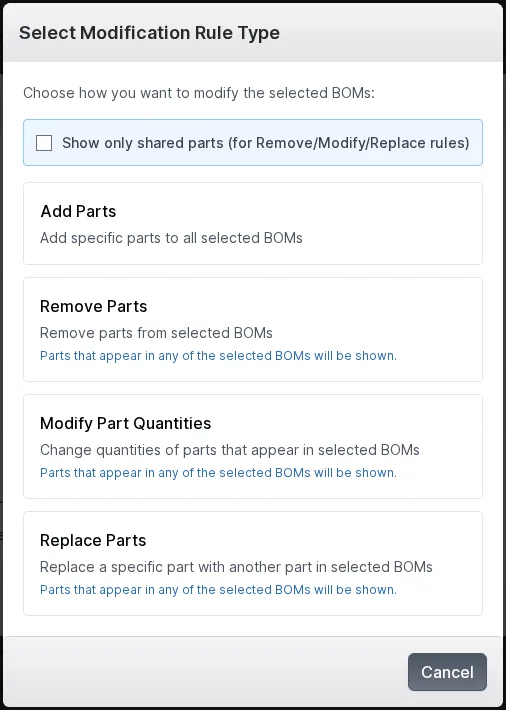
A modification rule is one of four kinds: add parts to every selected bill, remove parts, change the quantity of parts, or replace one part with others.
For remove, change and replace, the part list can be limited to parts that are in every selected bill, or can show any part found in any of them.
- A replacement takes the replaced part's quantity, or a quantity of its own
- Only one-for-one replacements can carry attributes across
A reason, always
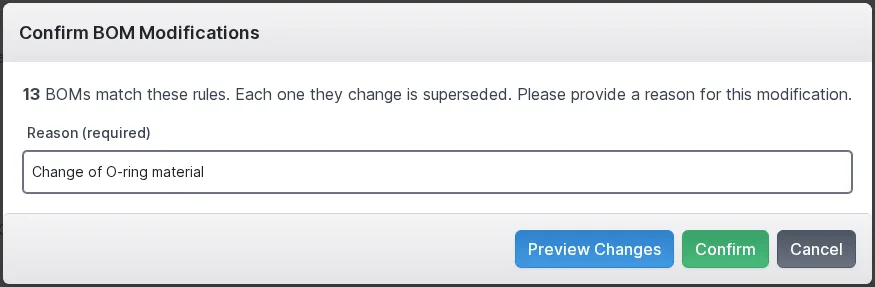
Confirm says how many bills match the rules and asks why. The reason is required, and Preview Changes is one button away before anything is made.
Very large runs are warned about first, and a run that stops part-way can be confirmed again to carry on where it stopped.
- The count of bills to be superseded, stated before confirming
- Preview Changes or Confirm from the same dialog
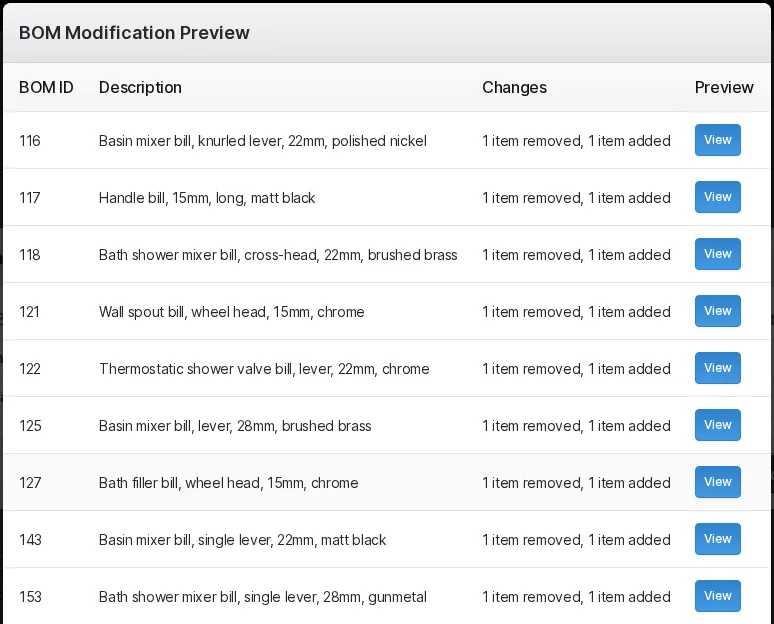
Read every change before it is made
The preview lists every bill the rules would change, with how many items would be added, removed or modified. Select View on any bill for its line-by-line difference.
- One row for every affected bill
- Nothing is changed by previewing
Before and after, line by line
The difference view puts the current bill beside the bill as it would be after the rules, with what leaves in red and what arrives in green. If it is right, confirm; if not, close it and change the rules.
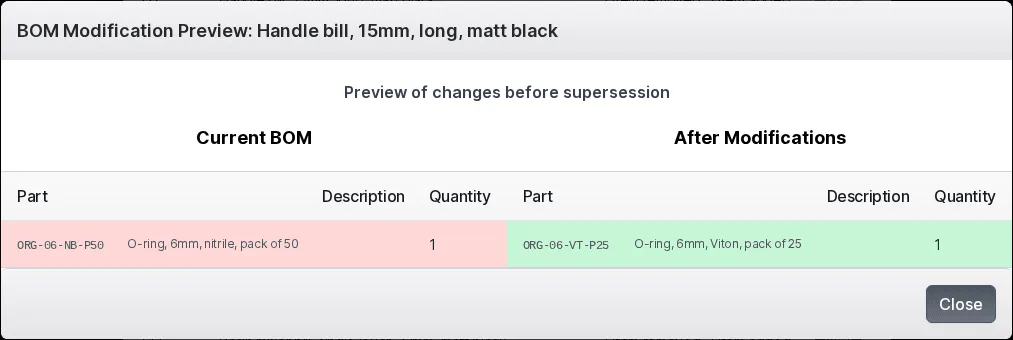
These screens were taken on fictional demonstration data. The rules were previewed but never confirmed, so no bill of materials was changed.
The rest of the ERP
Every area works from the same record of every part, customer and order.
- 01
Sales
Customers and prospects, quotations, orders, the sales-item catalogue and returns, in one record that follows the customer's order all the way to dispatch.
- 03
Production
Jobs and works orders planned from real demand, operations run at workstations, with timing, materials and quality issues tracked as the work is done.
- 04
Purchasing
Suppliers and the parts they sell, purchase orders raised from real demand, goods receipts against orders or straight onto a job, and subcontracting.
- 05
Stock
Warehouses, areas and bins, batches with ownership and purpose, forecasting by part, book in, relocate and stock counts.
- 06
Dispatch
Packages, dispatches and the carriers you use, with export paperwork and proof of delivery kept with each dispatch.
- 07
Finance
Invoices, pro-formas and credit notes, purchase bills, and standard costs rolled up from bills of materials and saved as snapshots.
- 08
Platform
Users and roles, a history of every change, editable document templates, custom fields, global search and to-do lists.
Bring your own bills of materials
Tell us how you build your products and we will show you how they are defined in the ApexFactory ERP.