ApexFactory ERP
Production and the shop floor
Production in the ApexFactory ERP starts from demand: orders, jobs that need sub-assemblies and stock below its minimum. It ends on the shop floor, where operators start, pause and complete operations and every minute and every issue of material is recorded.
What production covers
Pending production
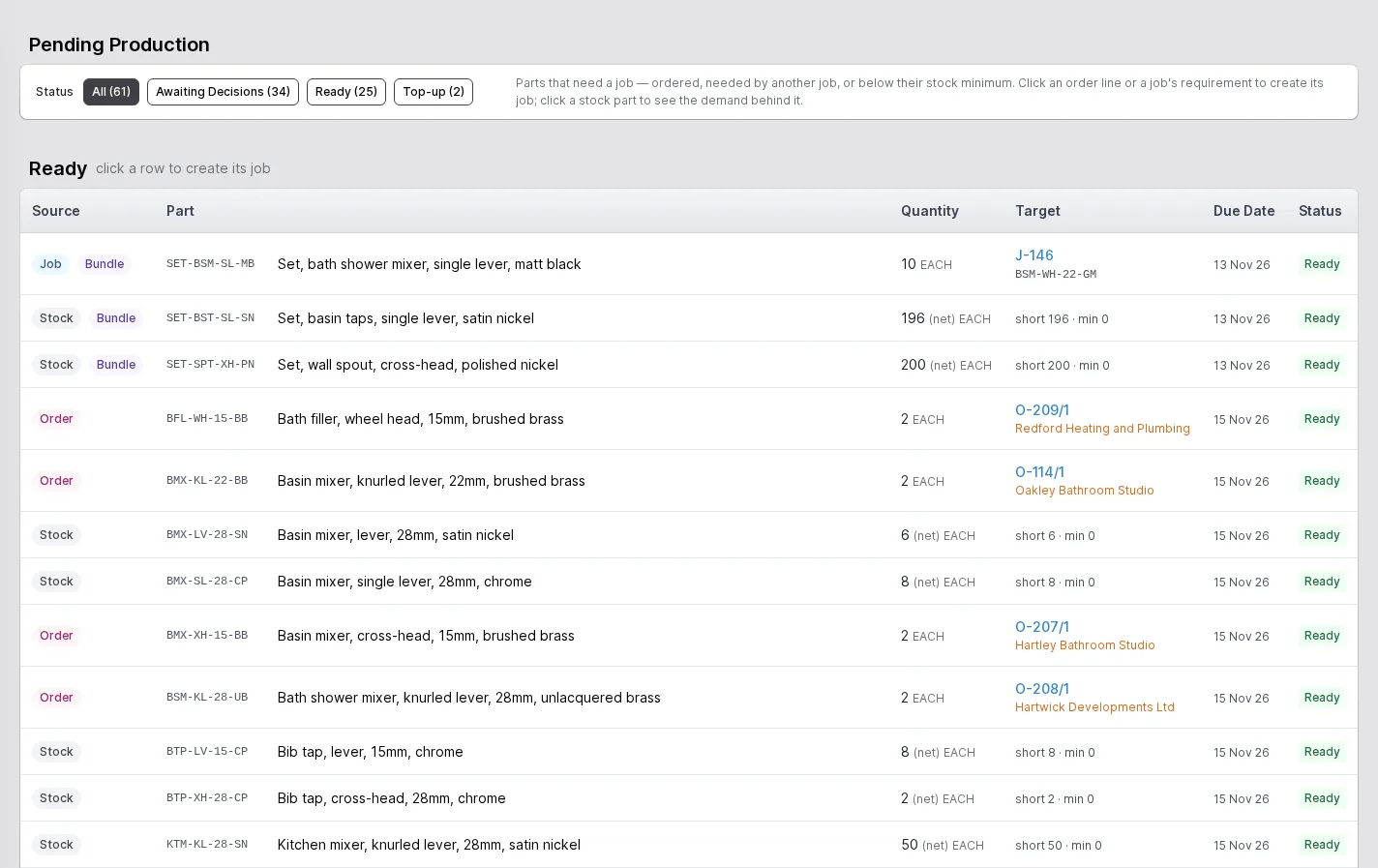
One screen lists the parts that need a job: ordered by customers, needed by another job or below their stock minimum. Click a row to create its job. A review rule can hold lines, such as a special finish, for a person to look at first; they wait under Awaiting Decisions with the reason.
Jobs for stock, orders or other jobs
A job makes a quantity of a part, targeted at stock, at a customer order line or at a parent job as a sub-assembly. Its due date is set explicitly or tracked from the order or the job it serves, and it can be flagged as priority.
Works orders and batches
Each job is split into works orders, the batches that actually go through the operations. A works order can be split during production, given its own due date and booked in when complete.
Operations run in sequence
Operations move from idle to pending to running to completed, and only one is ready at a time per works order, so work cannot jump the queue. Standard operations record a completed quantity; kit operations carry the whole quantity forward.
Time, people and materials
Starting and completing an operation records sessions, so you know who worked on what and for how long. Materials are issued against the job as operations complete, and partly finished work waits in a WIP staging bin between stations.
Assembly jobs
A bundle is made by combining components rather than by manufacturing operations. An assembly job needs only a finalised bill of materials, makes a single works order and bundles during pick and pack.
Quality issues and reworks
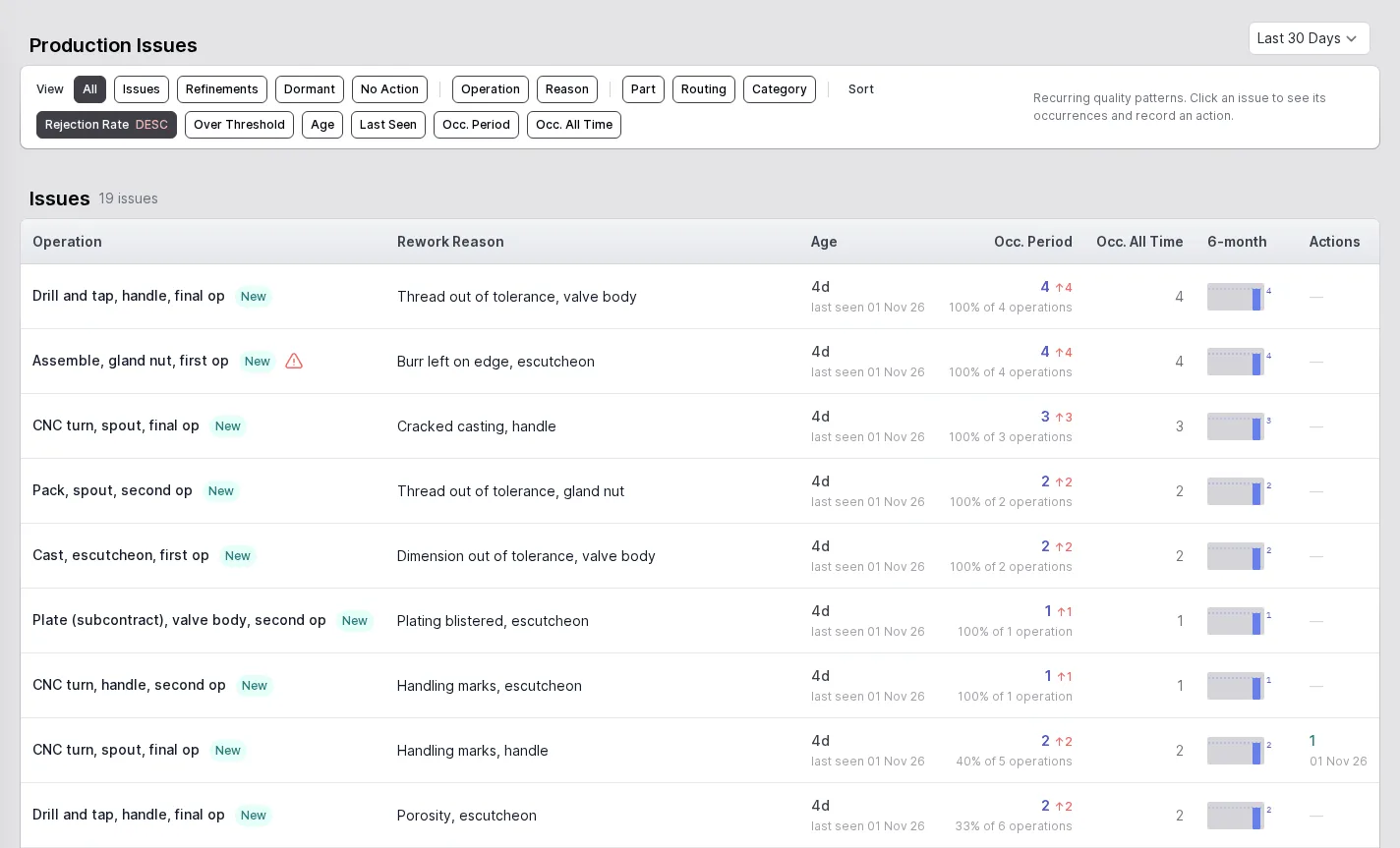
A rework records which operation failed, why and how often. The issues screen groups recurring causes, with occurrence counts over a period, how long each has been open and a six-month trend, so you can fix the cause and not only the part.
Workstations and operators
Every workstation shows its health, and a health check flags those with set-up problems before an operator finds out. Operators are a separate kind of user with a focused interface, clock in and out, and carry roles such as cell leader.
Plan from demand, not from a guess
The pending production planner reads demand from three places: customer order lines, the requirements of other jobs and stock that has fallen below its minimum. Each row shows where the need comes from, how many are needed, what it is for and when it is due.
Bundles are flagged as such, top-ups are separated from customer demand, and anything a review rule says needs a person's decision waits under Awaiting Decisions, with the reason, until it has one. Creating the job is one click on the row.
- Source shown for every row: order, job or stock
- Filters for ready, awaiting decisions and top-up
- Job creation from the row
Find the cause behind recurring problems
Each rework records the operation and the reason. The production issues screen then pulls the patterns together: which operation and reason combinations keep recurring, how many times in the period and in all time, when each was last seen and which way the trend is going.
Issues can be viewed by operation, reason, part, routing or category, sorted by rejection rate or threshold, so the conversation with the shop floor starts from facts.
- Occurrences in a period, in all time and over six months
- Views by operation, reason, part, routing or category
- Refinements and actions recorded against an issue
The workstation screens
Work is done at workstations, and the ApexFactory ERP gives each one a screen of its own. It is a part of the ERP separate from the office screens: an operator is a different kind of user, whose log-in takes them to the workstation screens and nowhere else, with a simplified interface for production tasks.
A workstation is set up with what it does: run operations, kit materials, process orders, book finished work in, count stock, pack, or manage stock and operations. Its tabs show only those things, so the screen is as short as the job, and its queues are limited to the operation stations and stock areas it has been given.
Orders
Order lines waiting for a job are listed at the station, so a job can be created from there.
Kit
Kit operations, with how much of each kit can be issued from stock now.
Operations
Standard operations to start, pause, complete, split or send for rework.
Book In
Finished works orders waiting to be booked into their stock bins.
Count
Stock due for counting at the station, with the days since each last count.
Manage and view
Manage stock, operations and packages; view the jobs and sections around the station.
Pick a workstation
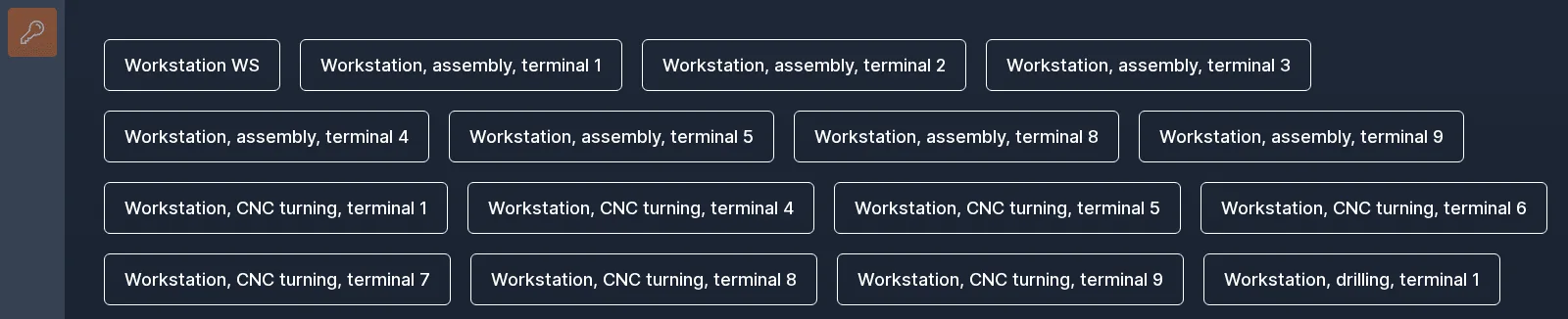
An operator starts at the list of workstations and picks the one they are standing at. The screen then opens on that station's queue.
A column of buttons down the left edge logs out; once a workstation is open it also switches workstation, and a second group shows the clock-in history and clocks out.
- One large button for each workstation
- Switch workstation, log out and clock out from the left edge
Run operations in sequence
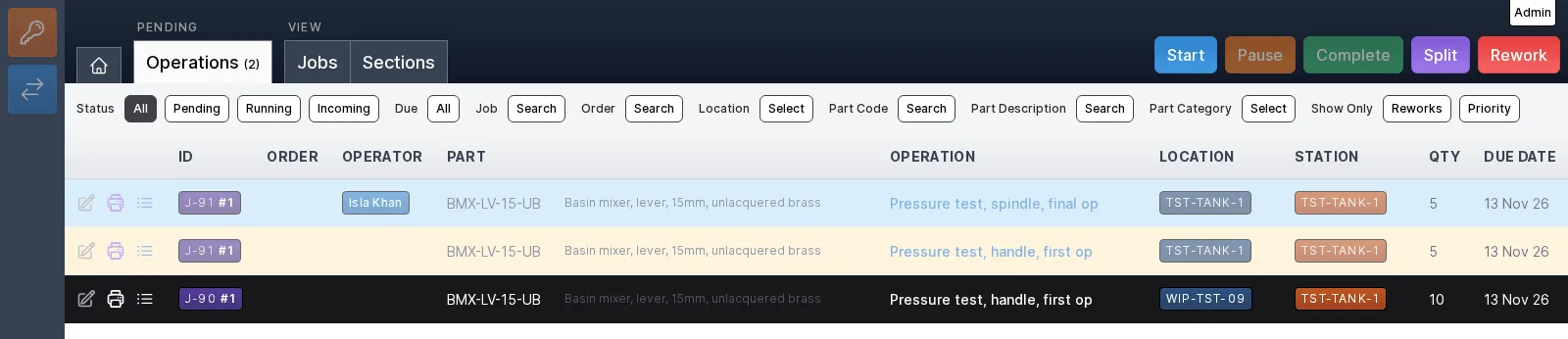
The Operations tab lists the standard operations waiting at the station: job, operator, part, operation, location, station, quantity and due date. Select a row and the buttons that apply to it light up: Start for a pending operation, Pause and Complete for a running one, and Split and Rework where the operator may use them and the work allows.
Only one operation per works order is ready at a time, so work cannot jump the queue; when one is completed the next becomes ready.
- A running operation shows who is working on it
- Operations still waiting on an earlier step are marked as incoming
- Completing records the quantity, issues the materials and names the staging bin for the next step
- Filters for status, due date, job, order, part and category
Kit the materials
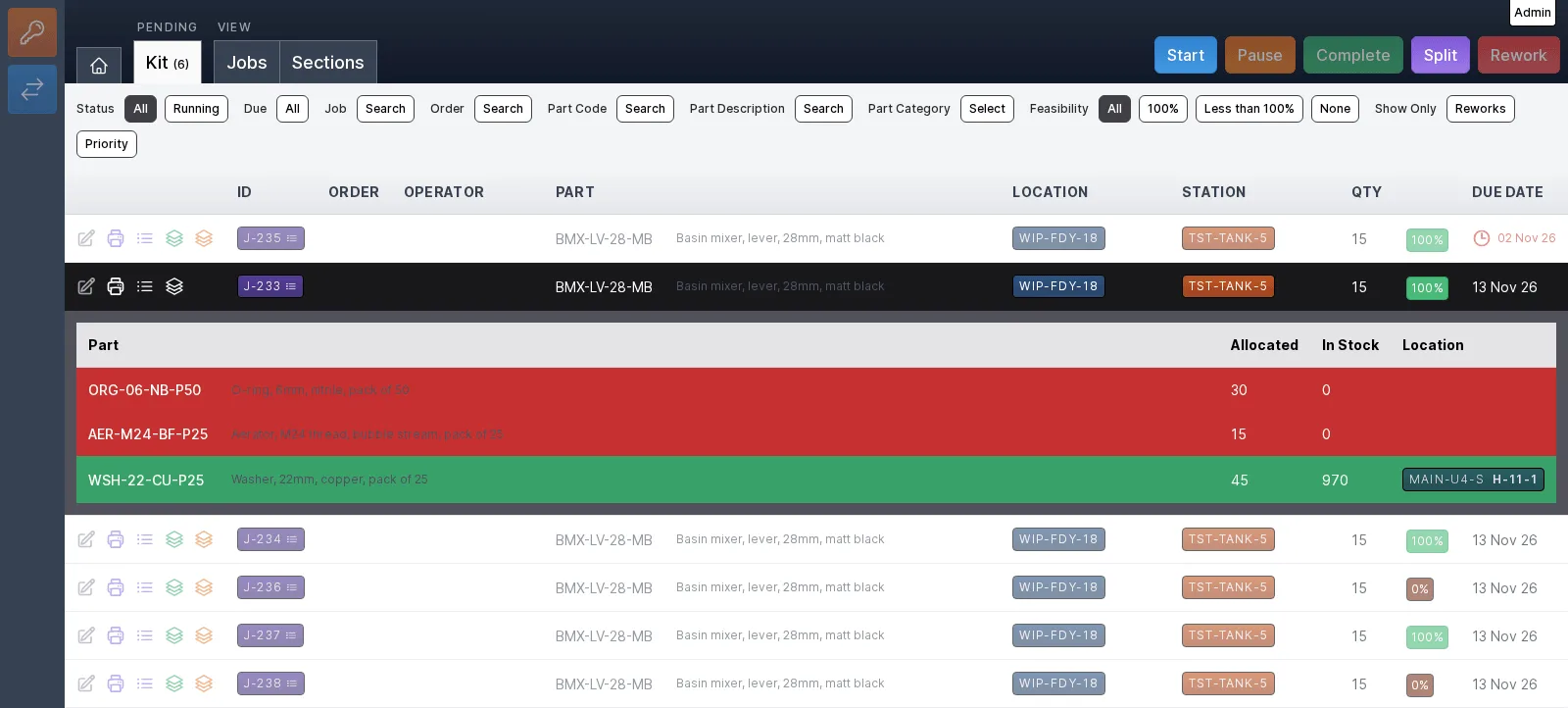
A kit operation carries the whole quantity forward from the step before, so there is no quantity to type: what matters is that the materials are at hand. The Kit tab shows each kit with a feasibility figure.
Select a kit and its materials open underneath: what is allocated, what is in stock and the bin to fetch it from. A shortfall shows in red and a part that is covered shows in green.
- Feasibility on every kit, with filters for 100%, less than 100% and none
- Late work marked in red beside its due date
- Start, pause, complete and split from the same buttons as operations
Book finished work into stock
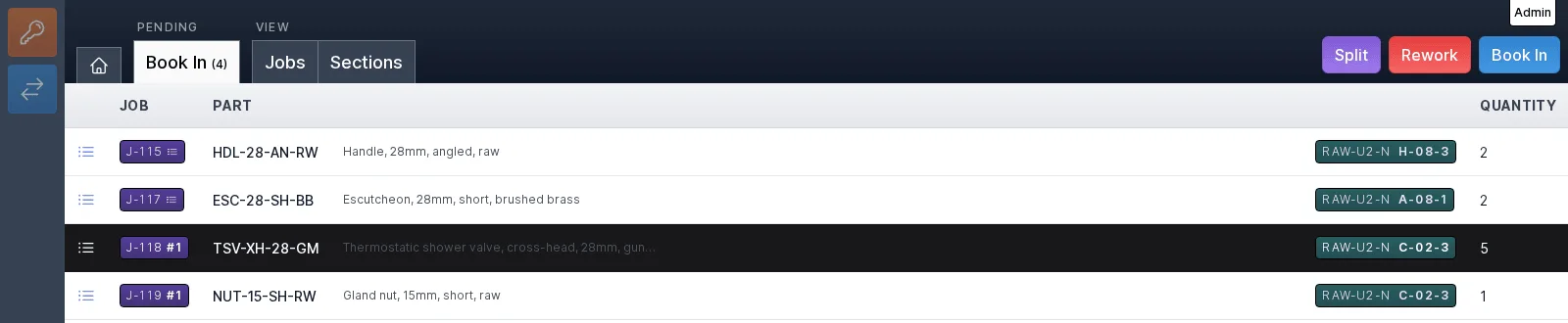
When the last operation of a works order is done it is ready for book-in, and it waits on the Book In tab until it is put into its stock bin. Select the works orders and press Book In; several can be booked in together.
When the last works order of a job is booked in, the job completes by itself.
- Job, part, bin and quantity on every row
- Split a works order, or send it for rework, from the same screen
Count stock where it is
Each stock item has a count frequency, and the Count tab lists what is due at the station, with the days since it was last counted, the date it was last counted and its bin. The last-counted date is kept so the next count can be scheduled.
Parts flagged for counting carry a flag and can be shown on their own.
- Filter by bin or by part code
- Days since the last count on every row

Manage stock at the station
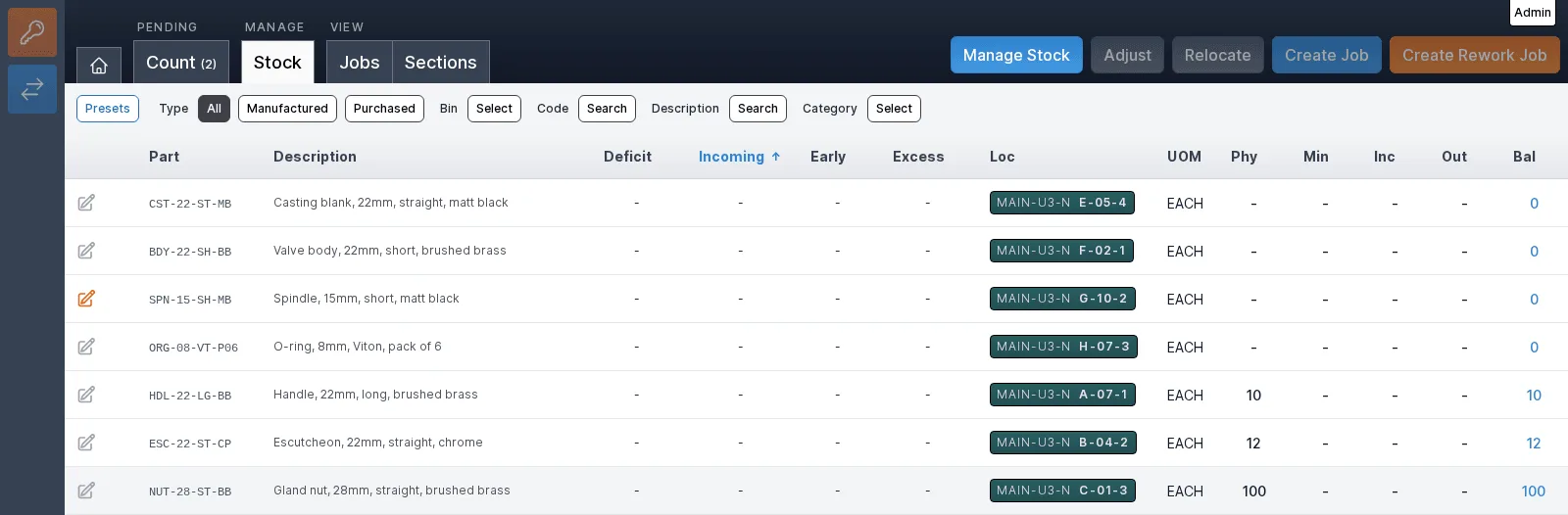
A station that manages stock gets a Manage tab. It lists the stock items in the station's areas with their deficit, incoming, early and excess supply, bin, physical quantity, minimum and balance.
Buttons across the top manage stock, adjust it, relocate it and create a job or a rework job for a part, without leaving the workstation.
- Filter by type, bin, code, description and category
- Adjust and relocate stock where it sits
Set up in the office
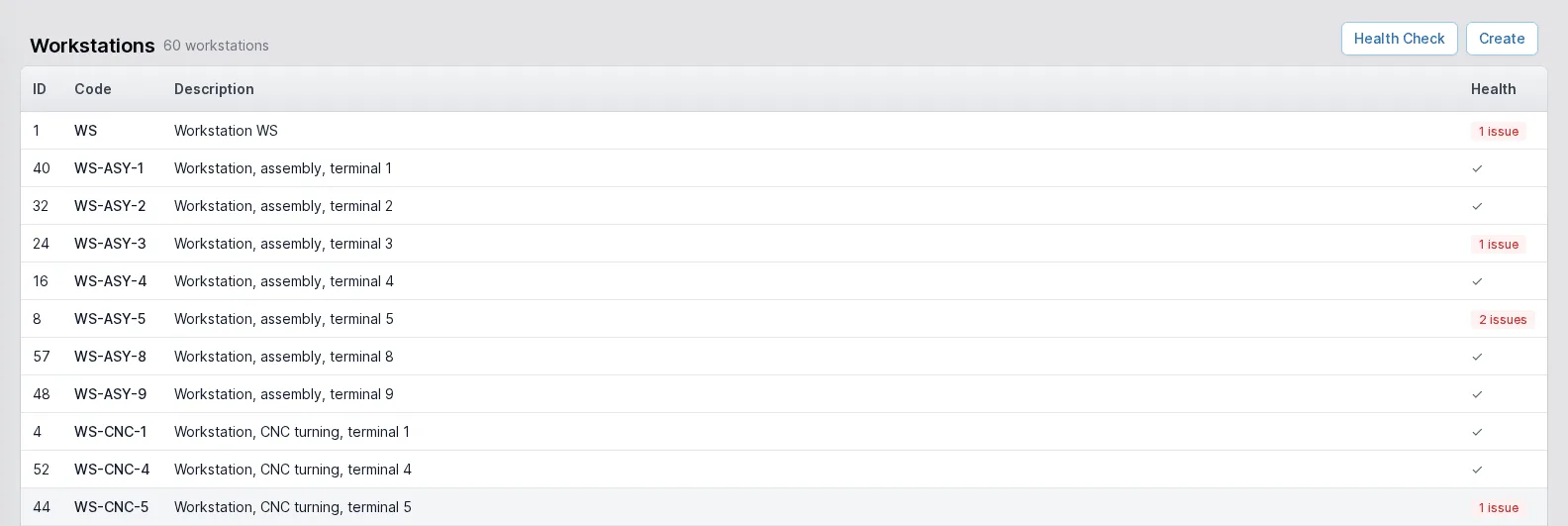
Workstations are created and configured in the office, from the Workstations list in the production area. The Health column flags a workstation whose set-up could never show work to an operator, and Health Check lists the problems.
Without it the fault would be silent: nothing errors when a station's queue is set up to be empty, the work just goes unseen.
- Each workstation's capabilities, stations and stock areas set up one by one
- Set-up problems named, with the capability they affect
Operators and their roles
Operators have a list of their own, with a username, a name, their roles and a Clocked In column that marks who is on the clock. A role such as Cell leader is set here.
Roles decide what an operator may do. Starting, pausing and completing your own operations is standard operator access; controlling any operator's operations, or managing and assigning them, are separate permissions.
- Operators are a separate kind of user from office staff
- Clock in and out recorded, with sessions that show who worked on what and for how long
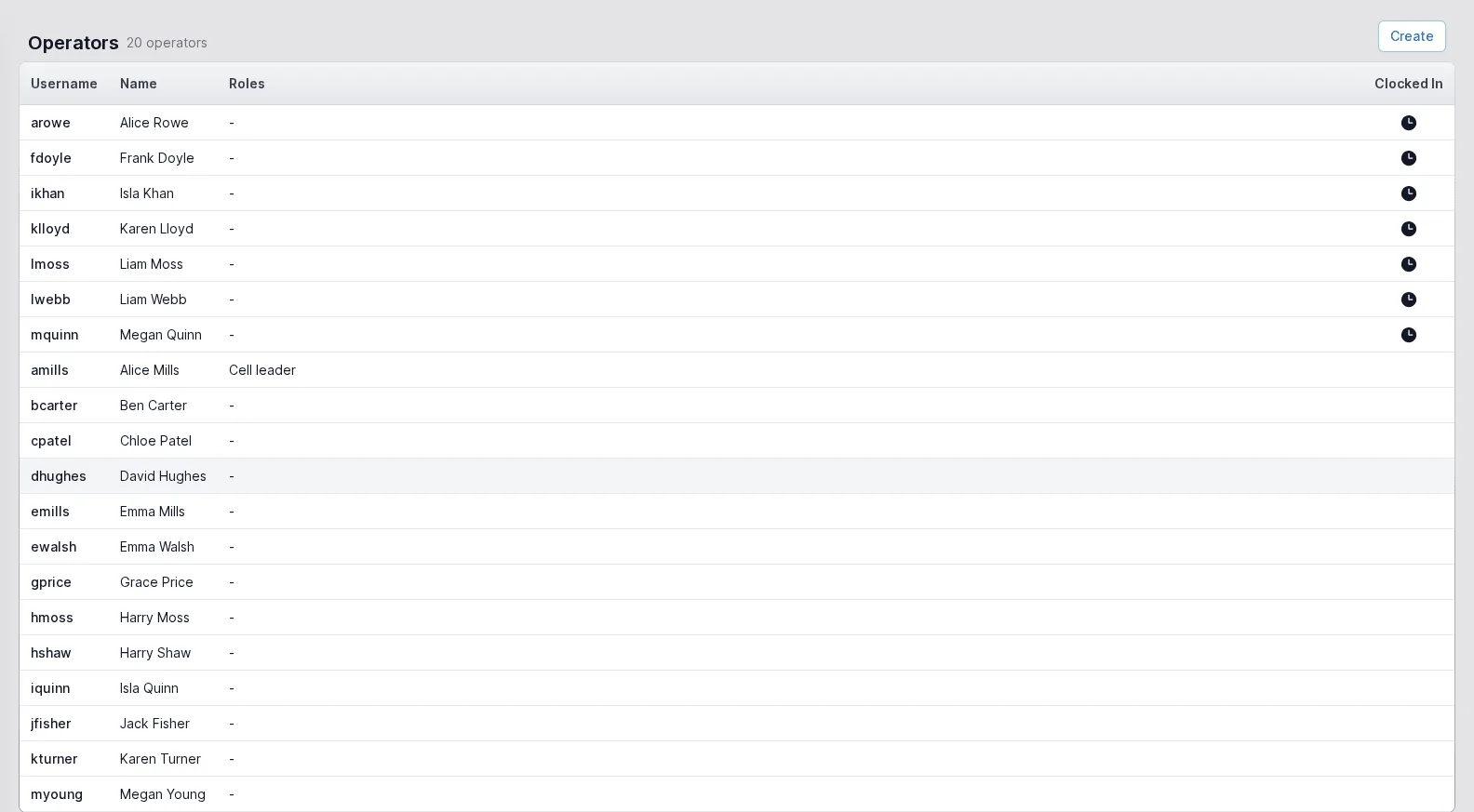
Each picture comes from a different workstation in our demonstration data, because a workstation shows only the tabs it has been set up for. They are the real workstation screens at a window 1600 pixels wide, so every column fits.
The rest of the ERP
Every area works from the same record of every part, customer and order.
- 01
Sales
Customers and prospects, quotations, orders, the sales-item catalogue and returns, in one record that follows the customer's order all the way to dispatch.
- 02
Engineering
Parts and how each is supplied, bills of materials, routings and the operations they are built from, with schedules that work back from the due date.
- 04
Purchasing
Suppliers and the parts they sell, purchase orders raised from real demand, goods receipts against orders or straight onto a job, and subcontracting.
- 05
Stock
Warehouses, areas and bins, batches with ownership and purpose, forecasting by part, book in, relocate and stock counts.
- 06
Dispatch
Packages, dispatches and the carriers you use, with export paperwork and proof of delivery kept with each dispatch.
- 07
Finance
Invoices, pro-formas and credit notes, purchase bills, and standard costs rolled up from bills of materials and saved as snapshots.
- 08
Platform
Users and roles, a history of every change, editable document templates, custom fields, global search and to-do lists.
See production run from demand to done
Describe your shop floor and we will walk you through jobs, works orders and operations on your own kind of product.